Samsung’s stock Smart Hub on my 65-inch CU7000 (Tizen 9) treats the television as an ad and telemetry terminal. Pressing Home opens a promotional banner, auto-plays Samsung TV Plus channels under an “On Now” shelf, and crowds the app row with preinstalled streaming services I don’t use. Behind the scenes, the OS runs Automatic Content Recognition (ACR), key-press logging, and SmartThings IoT daemons full time.
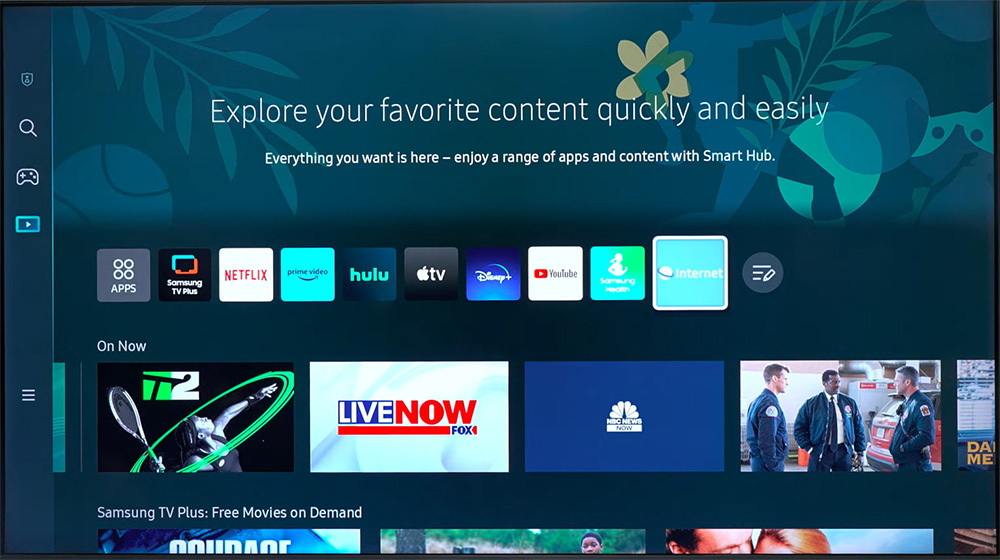
I wanted the TV stripped down to what I actually use:
- No telemetry, ad-tracking daemons, voice assistants, or background SmartThings and IoT processes.
- Sponsored physical buttons on the remote remapped to apps I actually watch.
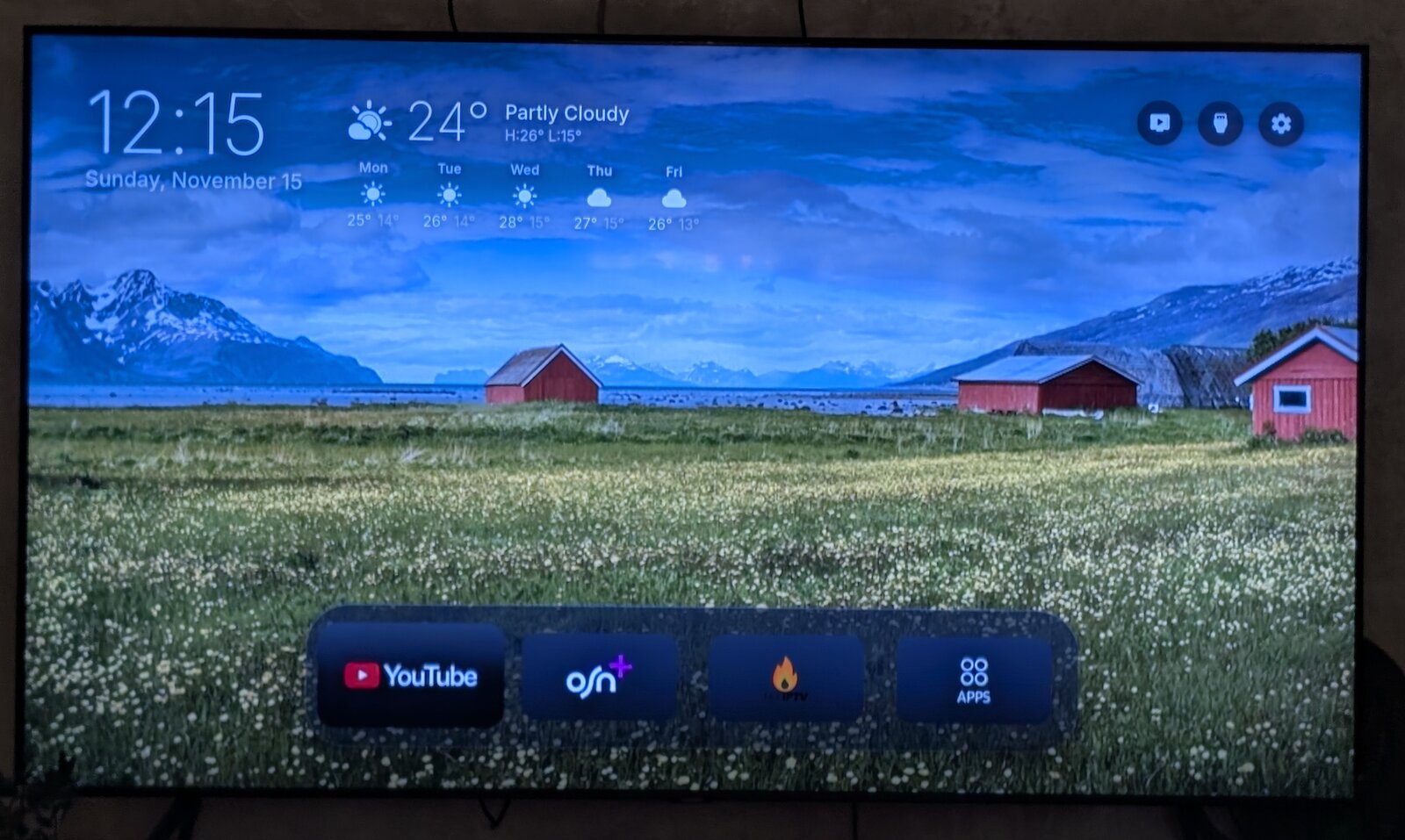
- A minimal home screen with the time, a 5-day weather forecast, looping photography from the internet, and a dock with my four daily apps.
Getting there took two layers: Vetro to root the TV, strip out the background bloat, and take over the physical remote buttons, plus a custom fork of Free My TV for the home screen UI.
Sideloading and root with Vetro
A regular Tizen web app (.wgt) can’t replace the system launcher or stop system daemons on its own. Even after sideloading an alternative launcher, pressing the physical Home button on the remote still drops straight back into Samsung’s Smart Hub.
Vetro solves that on Tizen 8 and 9. It builds on samsung-tv-root to run a local root service (uid 0) on the TV and exposes a web dashboard on port 8099.
Setting it up required a specific sequence because of how Tizen Developer Mode handles connections:
- Developer Mode activation. Entering
12345on the Tizen Apps screen opens the developer dialog. - Partner-level signing certificate. Normal Tizen sideloading works with a Public certificate, but Vetro requires Partner privileges tied to the TV’s DUID. I generated and signed the package through
apps2samsung-cli. - Loopback host IP (
127.0.0.1). For direct sideloading over LAN, the TV’s Host PC IP points at the workstation running SDB. Once Vetro is installed, that IP has to change to127.0.0.1so the TV’s own background service can talk to its local SDB daemon at boot. - TV-Store relay. Pointing the Host PC IP at
127.0.0.1blocks direct SDB pushes from the network. Before flipping the IP back to loopback, I installed theA2STVStore.Storerelay app and armed it with my signing certificate so future.wgtbuilds could be pushed over HTTP and installed straight from the TV screen.
Stripping out tracking, ads, and SmartThings
Once Vetro’s root agent connected, I used its dashboard and task manager to gut the background services Samsung ships enabled by default. None of those processes were used, and running an always-on surveillance and IoT stack on a living-room display is intrusive by design.
What I disabled across Vetro’s Quick Settings and Task Manager:
- Viewing-data collection and ACR. Stopped the services that fingerprint what’s playing on screen, log remote key presses, and upload usage telemetry.
- Advertising services and on-TV DNS blocking. Disabled Tizen’s native ad daemons and turned on Vetro’s local domain filter directly on the TV, blocking ad and telemetry endpoints without touching my router’s DNS configuration.
- SmartThings and IoT background daemons. Shut down the SmartThings hub and related IoT services. I don’t use the TV as a smart-home controller, and there’s no reason for a display to run always-on local network discovery and cloud IoT brokers in the background.
- Voice assistants. Disabled Bixby, Alexa, and Google Assistant background processes, which also turns off the remote’s microphone listener.
- Idle memory hogs. Disabled HbbTV, Ambient Mode, and Multi View background preloading (which drops a
disable_preloadingmarker file honored by Samsung’s startup unit so Multi View only loads on demand). I also turned on Keep removed apps removed so deleted bloatware doesn’t silently reinstall itself. - Automatic firmware updates. Blocked OTA updates at the system level so a background upgrade to Tizen 10 can’t patch out the root exploit.
Remapping the remote’s sponsored buttons
Samsung’s slim solar remote has dedicated hardware buttons at the bottom for streaming services I don’t use. Normally those buttons are hardcoded to launch specific Tizen package IDs or open the store page to install them.
With Vetro’s remapper intercepting key events at the system level, I rebound them to the apps I actually open:
- Netflix button opens YouTube.
- Disney+ button opens OSN+.
- Home button opens my custom Free My TV build instead of Samsung Smart Hub.
Evaluating existing Tizen launchers
Vetro includes its own minimal dock overlay, and can hand off the Home key to any third-party launcher. I tested four options before writing any code:
- Couch TV. Runs a server bridge over Docker with scenes and phone remote controls. Too many moving parts for a TV launcher, so I removed it.
- APL Launcher. Clean grid layout, but noticeably sluggish on the CU7000 hardware.
- Arn0 TV. Fast and lightweight, but too stripped-down for what I wanted on screen.
- Free My TV. Open-source vanilla HTML, CSS, and ES5 JavaScript app by
simbasjunglesthat builds into a standalone1.5 MB.wgtbundle.
Free My TV had the best foundation. It already included a centered, macOS-style dock that scales cleanly to any number of icons, a D-pad focus engine for the Tizen remote, an inputs drawer for HDMI devices, and an Open-Meteo weather integration configurable from the on-TV settings menu.
What I didn’t want from Free My TV was its primary home view: TMDB movie and TV show discovery carousels filling the screen.
Forking Free My TV
Because Free My TV has no framework build step, its entire frontend lives in web/index.html, web/home.js, and web/home.css, packaged by a small Python bundler (tizen/build.py). I cloned the repository onto my home server and stripped out the media shelves.
1. Dropping movie shelves and keeping configurable settings
Leaving tmdb_key empty in config.properties disables TMDB network fetches at build time. To remove the remaining UI scaffolding, I hid #title, #tabs, and #cards in CSS and forced dark mode (var night = true;) so text overlays stay legible over photography regardless of time of day.
I kept Free My TV’s built-in Data store intact. Changing the city, temperature unit, or 24-hour clock format through the Settings button on the TV with the remote still updates the home screen immediately.
2. Moving the weather forecast next to the clock
Stock Free My TV tucks the weather widget inside a secondary pull-down drawer. I wanted it permanently visible in the top-left corner next to the clock, arranged in two rows: [clock] [current weather] on the first row, and [date] [5-day forecast] underneath.
I wrapped #clock and a new #topwx container inside a flex cluster in web/index.html, disabled the old drawer weather block, and hooked a new renderTopWx() renderer into Data.onChange in web/home.js:
function renderTopWx() {
  var box = $("topwx");
  if (!box) return;
  box.innerHTML = "";
  var w = Data.weather;
  if (!w) return;
  var now = el("div", "twx-now", box);
  sym(Data.symbol(w.code, w.isDay), now);
  el("span", "twx-temp", now, Data.degrees(w.temp));
  var col = el("span", "twx-col", now);
  el("span", "twx-cond", col, Data.condition(w.code, w.isDay));
  el(
    "span",
    "twx-hl",
    col,
    trf("H:{max}", { max: Data.degrees(w.max) }) +
      "   " +
      trf("L:{min}", { min: Data.degrees(w.min) }),
  );
  var days = (w.days || []).slice(0, 5),
    row = el("div", "twx-days", box);
  for (var i = 0; i < days.length; i++) {
    var x = days[i],
      d = el("span", "twx-day", row);
    el("span", "d", d, Data.weekday(x.at));
    sym(Data.symbol(x.code, true), d);
    var t = el("span", "t", d, Data.degrees(x.max));
    el("span", "lo", t, Data.degrees(x.min));
  }
}
3. Looping online photography with offline caching
For the background, I added web/wallpaper.js and two full-screen layers (#wpA and #wpB) with a 1.6-second CSS opacity transition and top/bottom dark gradient scrims (#scrimTop and #scrimBot) so white text stays readable over bright skies.
On startup, the module queries the Wikimedia Commons API (Category:Featured_pictures_of_landscapes with origin=* for CORS) for up to 80 curated 1920px photographs:
var API =
  "https://commons.wikimedia.org/w/api.php?action=query&format=json" +
  "&generator=categorymembers&gcmtitle=Category:Featured_pictures_of_landscapes" +
  "&gcmlimit=80&gcmtype=file&prop=imageinfo&iiprop=url|mime&iiurlwidth=1920&origin=*";
To avoid a blank black background while the TV establishes Wi-Fi or waits on the API response:
- Every successful fetch caches the image URL list in
localStorageunderwp.list. - Boot starts immediately from the cached
wp.listif present, or falls back to a bundled list of six verified URLs. - Each next photo preloads in an off-screen
Image()instance before flipping the.onclass between#wpAand#wpBevery 20 seconds (SHOW_MS = 20000). If an image fails to load,img.onerrorskips straight to the next URL.
Testing before deploying to the TV
Free My TV includes a browser compatibility shim for Tizen’s tizen.* APIs when built with python3 tizen/build.py --preview. Before signing and pushing the .wgt package to the TV, I served out/tizen from a container on my home server and tested the layout, D-pad arrow navigation, and live weather rendering in a desktop browser.
Once the layout matched what I wanted, building FreeMyTV-tizen.wgt and pushing it through apps2samsung-cli staged the update in TV-Store on the TV. One click on the remote replaced the stock Free My TV build in place under the same FreeMyTVio.FreeMyTV package ID, which Vetro already had registered as the custom launcher.
Fixing Nintendo Switch HDMI wake hijacking
One annoyance remained after replacing the launcher. Whenever my Nintendo Switch woke from sleep on HDMI1, Samsung’s native External Device Manager fired an auto-discovery popup, yanked focus back to the stock Smart Hub, and asked to pin the Switch as a home tile. When the Switch went back to sleep, the tile vanished, repeating the cycle on the next wake.
Two native Tizen settings under Settings -> Connection -> External Device Manager fixed it:
Device Connection Manager -> Access Notification -> Offstops the “new device connected” prompt when the HDMI signal appears.Anynet+ (HDMI-CEC) -> Offstops the TV from switching inputs or hijacking focus when the console wakes.
Pressing Home on the remote now lands on the custom wallpaper launcher every time, with the clock and forecast in the top-left corner, system controls in the top-right, and my four daily apps centered in the bottom dock.